
Logging in
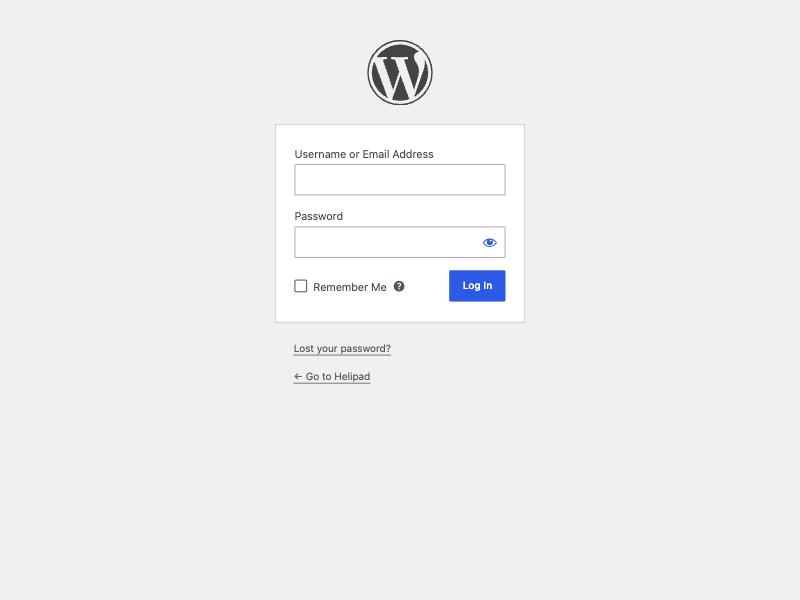
- Go to www.helipad.co.uk/wp-admin and put in your username and password. Your username is jakers. The password comes separately.
- Tick Remember Me if it is your own computer, and the site will not ask again for a fortnight.
- This is the build site, not the live one. helipad.co.uk does not point here yet, so nothing you do is public.
- The first time you log in, WordPress shows a welcome panel and so does Divi. Close both. They do not come back.
1. Find the page
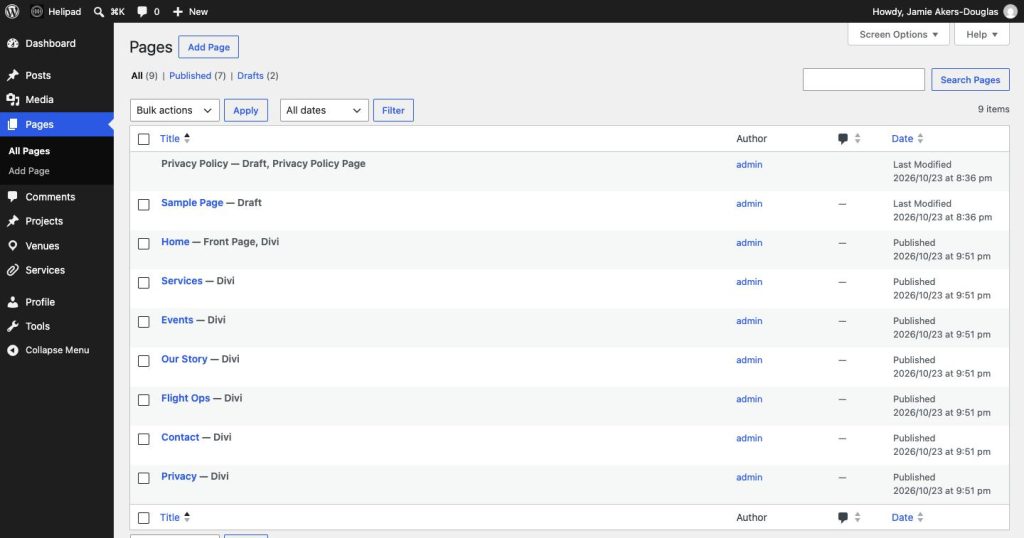
Click Pages in the left menu. Every page on the site is listed there. Your menu is short on purpose: Appearance, Plugins and the Divi settings are not on it, so there is nothing on that screen you can break.
2. Open it in the builder
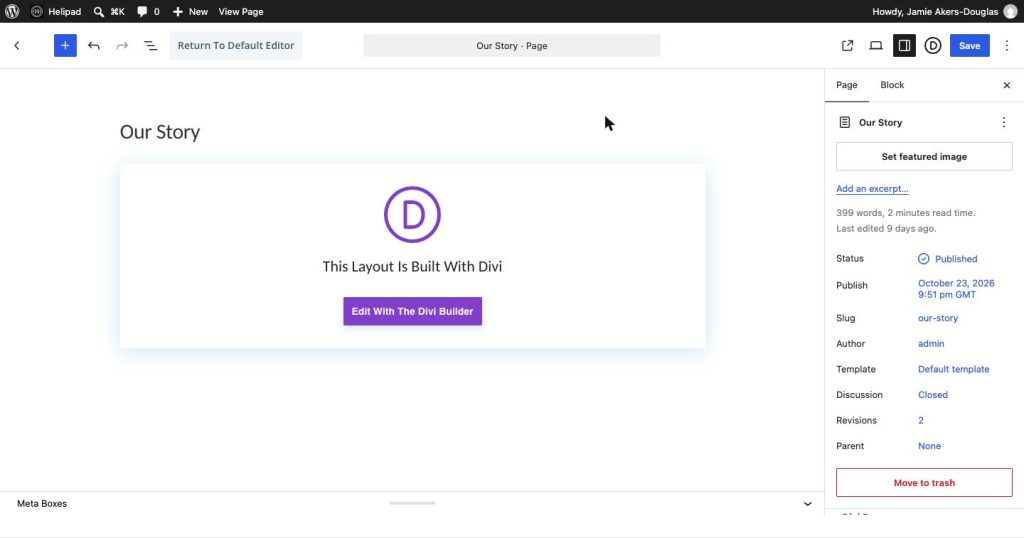
Click the page name, then click the purple Edit With The Divi Builder button. That is the editor the site is built in. The ordinary WordPress editor behind it will not show you the page properly.
3. Change the words
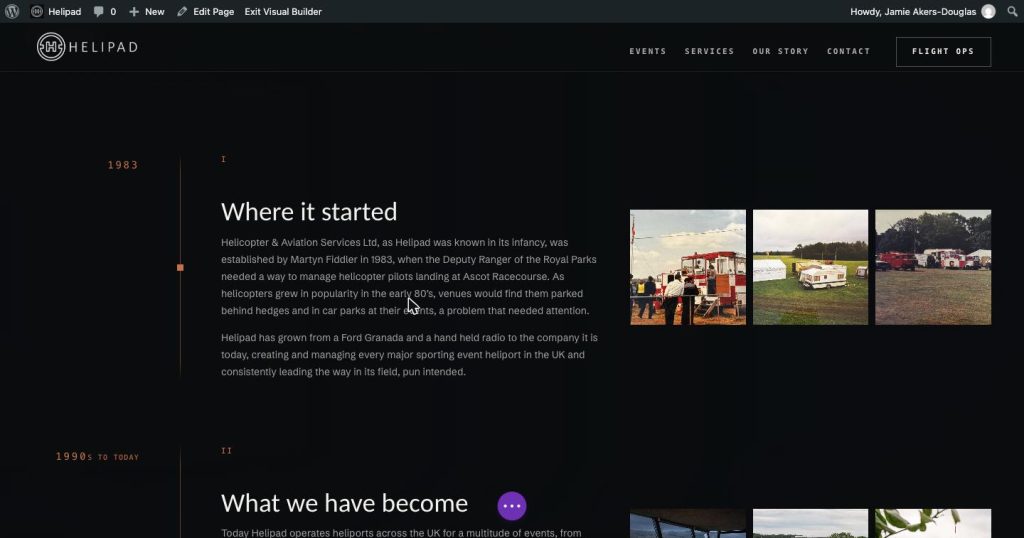
The page opens looking as it does to a visitor. Click straight onto any piece of text and type. Click somewhere else when you have finished with that block.
Text is the safe thing to change. Moving or deleting whole blocks is not, so if something needs moving, say so rather than doing it.
4. Save
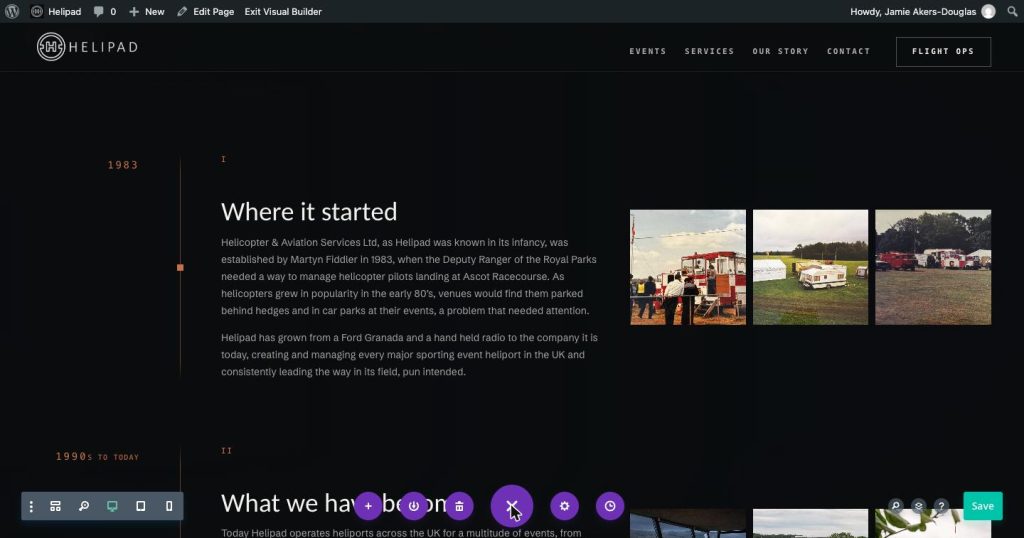
Click the purple dots at the bottom of the screen to open the toolbar. The green Save button is on the right. Nothing you have typed is live until you press it. Then click Exit Visual Builder at the top to come back out.
5. Check it
- Open the page normally, without the editor, and read it through. The editor can show things slightly differently from the finished page.
- Nothing is ever lost. WordPress keeps a revision of the page every time it is saved, and every revision is kept on this site. Any edit can be put back. Say which page and roughly what you changed.
6. The sentence Google shows
Back on the page screen, open Meta Boxes along the bottom. There is a box called Search result description. That is the sentence under the page title in Google, around 155 characters. Leave it empty and the site uses the wording already written into it, shown underneath as Currently using.
7. The event dates
The fixture dates live in their own list now, separate from the pages, so correcting one cannot disturb a layout.
- Click Fixtures in the left menu. All 37 are there, soonest first, showing the dates, the venue, what the dates mean and whether they have been confirmed.
- Click one to open it. First day and Last day are the two dates, and they are the same for a one day fixture.
- What do those dates mean? is the question nobody outside Helipad can answer. Choose whether the dates are the event itself or the days the heliport is open. The heliport often opens the day before the racing, so the two are frequently different.
- Confirmed by Helipad is the tick to put on once you have checked that fixture against operations.
- Press Update. The Events page picks it up straight away.
The Events page shows only what is still to come. Fixtures that have already happened stay in the list but are not printed on the site.
Nothing is offered to Google as fact until all 37 are ticked. That is deliberate. A wrong date in page text takes a minute to fix, but the same date handed to a search engine goes on being shown for weeks after the page is corrected.
What not to touch
- The enquiry form. The site prints it onto the pages rather than storing it inside them, so you cannot delete it by accident while editing. It also means it cannot be moved or removed from here.
- Anything you did not come to change. The builder will let you drag blocks around, and a layout is quicker to break than to put back.
- The event dates, inside a page. They are not in the pages any more. They have their own list, which is section 7, and that is the only place to change them.